To create a new lesson using MCEduHub’s Lesson Builder, follow the step-by-step guide designed to help you build an interactive and engaging lesson. With the Lesson Builder tool, you can incorporate resources, tests, assign lesson to students and additional learning materials to enhance your lesson content.
Step 1: Locating the Lesson Builder Tool
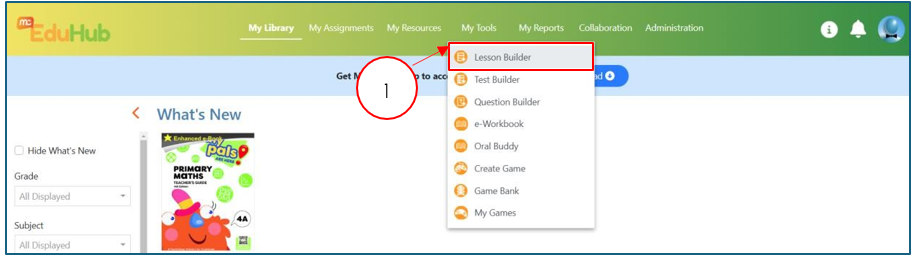
- At the menu bar, look for "My Tools" (Pointer #1) and click on it once. A dropdown menu will expand.
- Under the drop-down menu, select "Lesson Builder" and you will be redirected to the Lesson Builder page.
Step 2: Creating your new lesson
- On the Lesson Builder page, click on "+New" (Pointer #2).
- Upon clicking on "+New", you will be redirected to the Create Lesson page.

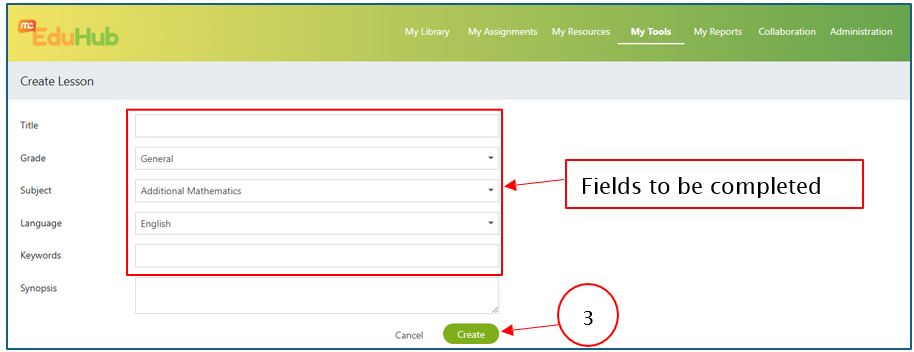
- Complete the fields in the Create Lesson page and click on "Create" (Pointer #3)
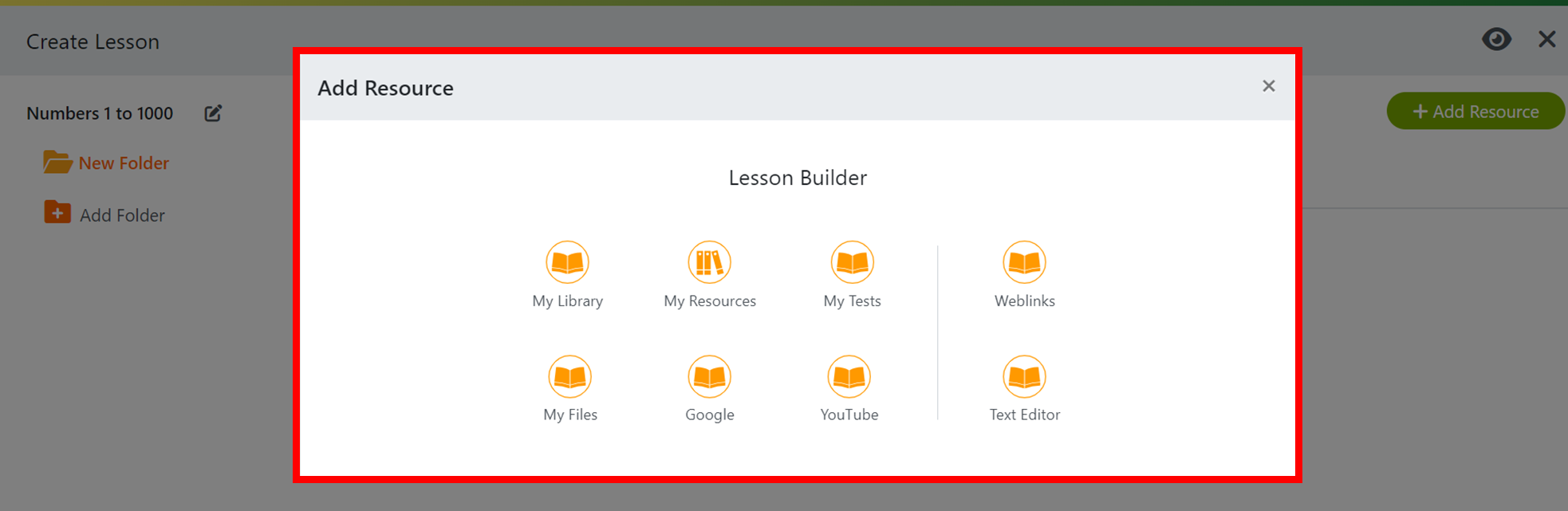
- Once you have created the Lesson, a pop up "Add Resources" will show. You can now add resources to your lesson.
- You have now completed creating a new lesson.
Was this article helpful?
That’s Great!
Thank you for your feedback
Sorry! We couldn't be helpful
Thank you for your feedback
Feedback sent
We appreciate your effort and will try to fix the article