To create and add MRMCQ using the “Test Builder” tool, please follow step-by-step instructions guide
Step 1: Locating the Test Builder Function
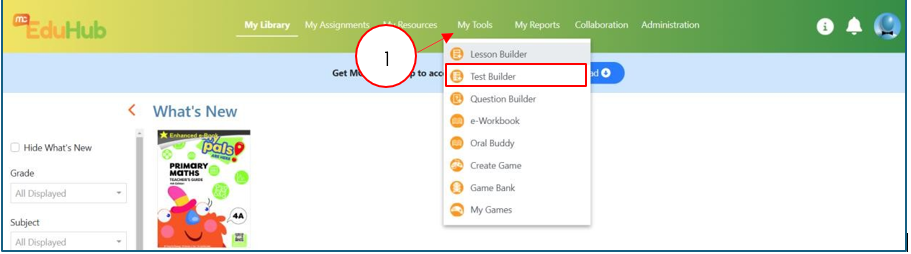
- At the menu bar, look for "My Tools" (Pointer #1) and click on it once. A dropdown menu will expand.
- Under the drop down menu, select "Test Builder" and you will be redirected to the Test Builder page.
- Step 2: Locating your Test
- Select your Test that you have created (Pointer #2)
- At the top right corner of your screen, click on the edit icon (Pointer #3)
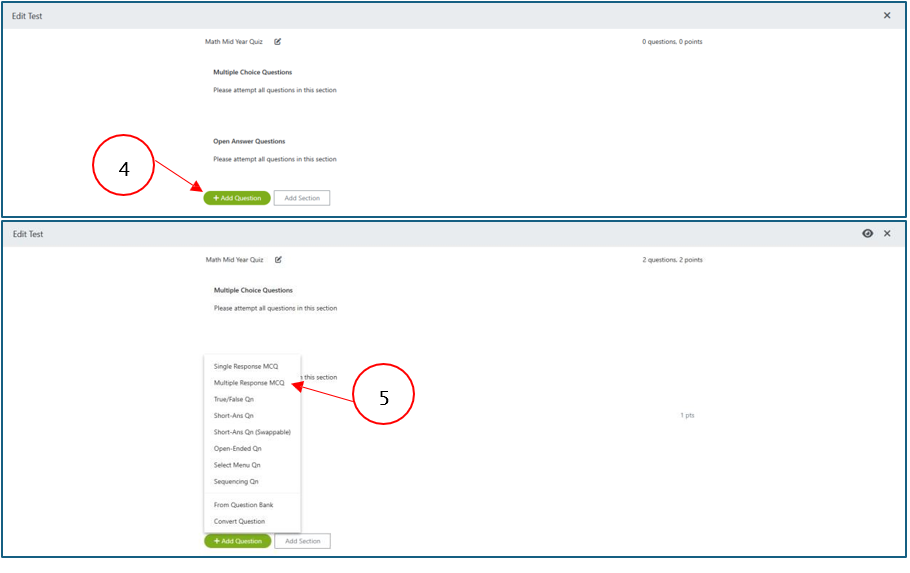
- Click on "+ Add Question" (Pointer #4)

Step 3: Adding MRMCQ to your Test - Once you have clicked on "+ Add Question" at Step 2 (Pointer #4), a drop down menu option will appear
- Select "Multi Response MCQ" (Pointer #5)
 Step 4: Setting your MRMCQ questions
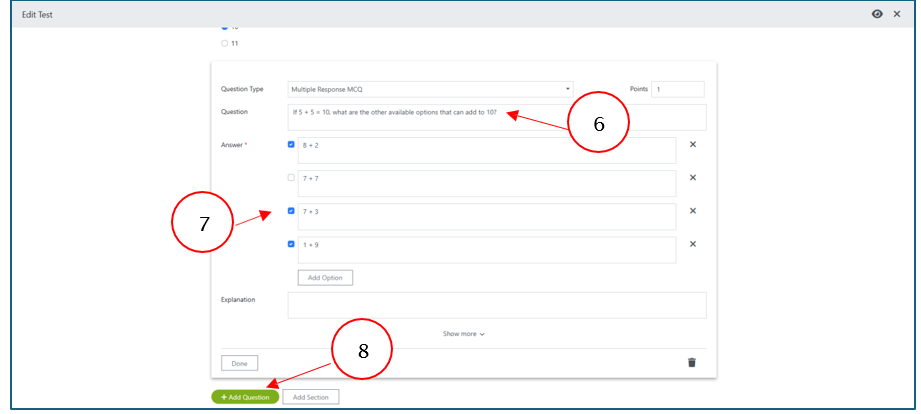
- On this page, you can now
- Assign points to the questions
- Enter your questions (Pointer #6)
- Enter your answer and indicate the correct answer by selecting on the options (Pointer #7)
- Provide any further explanation to the students is needed
- Click on "Done" (Pointer #8)
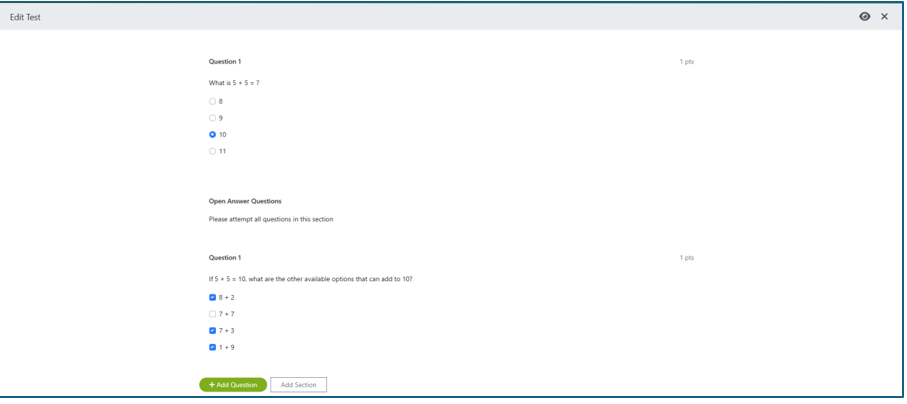
- Once you have click "Done" you will see that the questions is now created
 Step 5: Moving the questions into the correct section
- At top of your question(s) and you will see 6 dots. (Pointer #9)
- On the 6 dots, click on your mouse and drag the question into the relevant section.
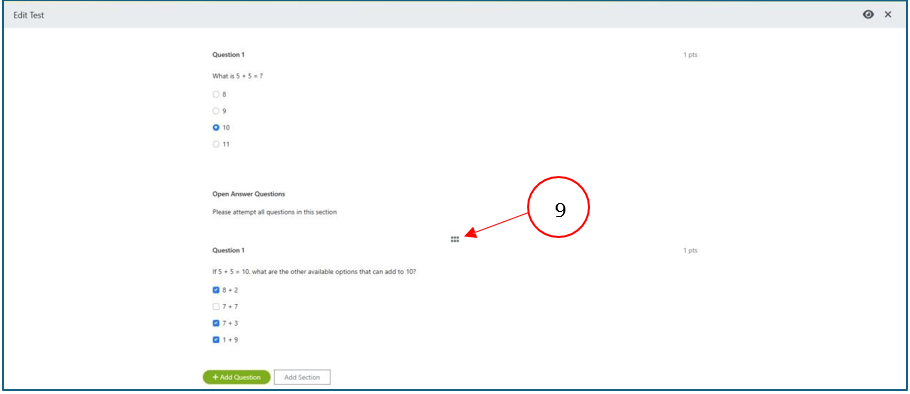
- Once you have moved the question, you should be able to see the question under the section (Pointer #10).
- To see a preview, click on the eye icon (Pointer #11).
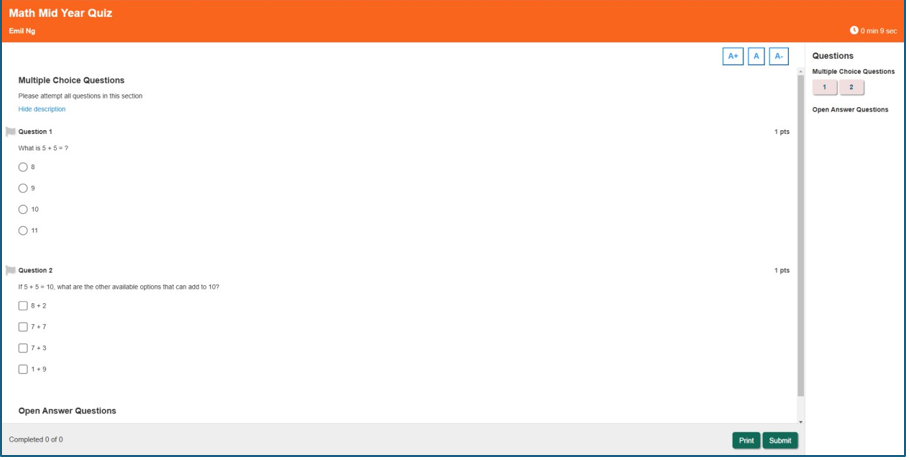
- Once you click on the preview button, you will see a pop-up
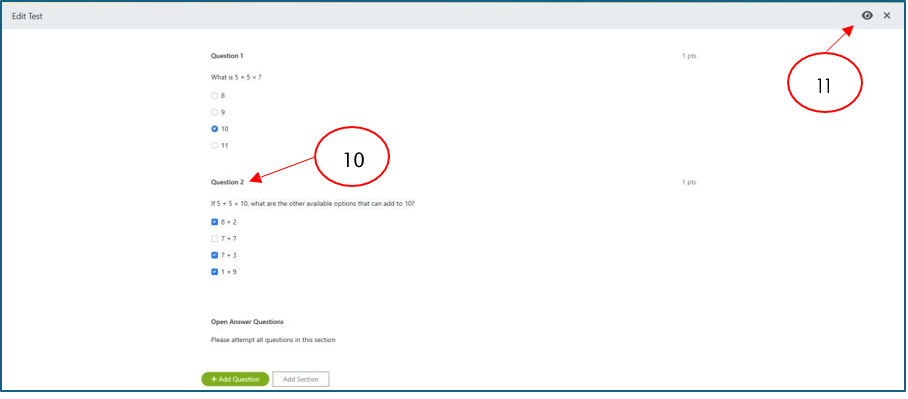
- In the preview page, you will be able to see all the question you have created here.
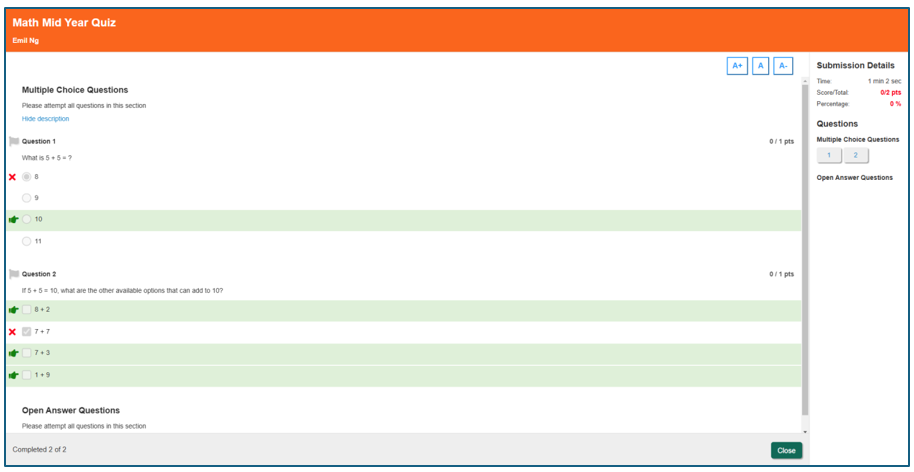
- If the student has answered wrongly, the screen will show the score, answer and other submission details
- On this page, you can now
Was this article helpful?
That’s Great!
Thank you for your feedback
Sorry! We couldn't be helpful
Thank you for your feedback
Feedback sent
We appreciate your effort and will try to fix the article