If you have received a new access code (e.g., a second access code) for MCEduHub and wish to add it to your existing account, please follow these step-by-step instructions:
Step 1: Log in to MCEduHub
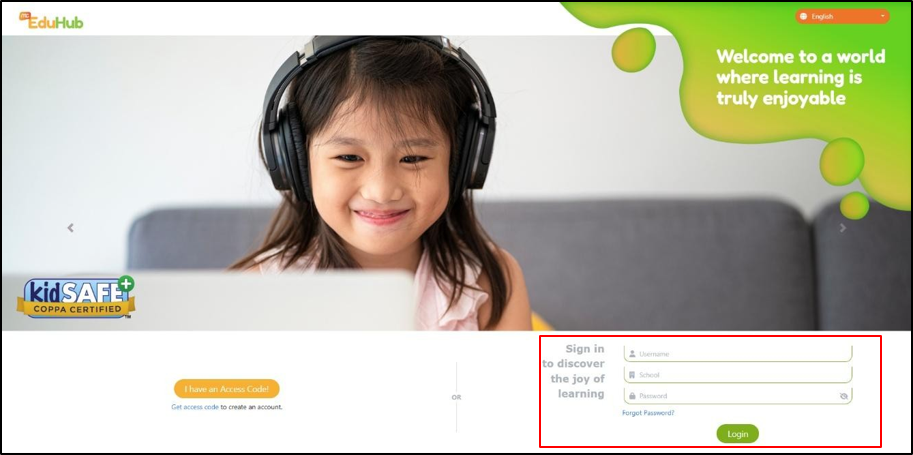
Step 2: On the menu bar section, click on your avatar at the top right corner.

Step 3: From the dropdown menu, click on 'Add Library Content'

Step 4: Activate your item by keying in the access code provided in the email.
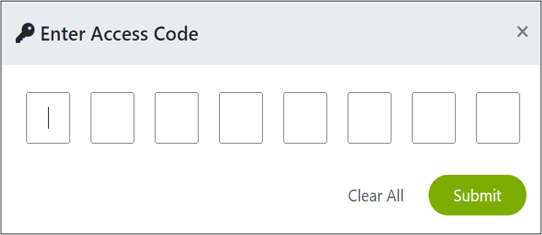
Step 5: Your new content should appear in your existing account.
Was this article helpful?
That’s Great!
Thank you for your feedback
Sorry! We couldn't be helpful
Thank you for your feedback
Feedback sent
We appreciate your effort and will try to fix the article